You can run a basic CMA from within Remine. It is essentially a 4 step process.
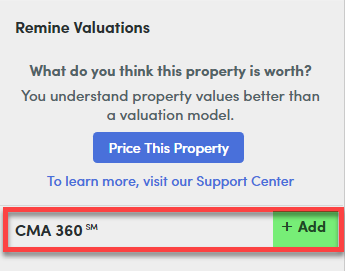
After you find the property you want to use as your subject property, click on the Add button next to CMA 360 (on the right side of the screen):
You can then use the fields on the next screen to enter characteristics about the property (beds, baths, sqft, etc.) and search for comparable properties. You can even use the map tool to search within a specific radius/distance of the subject property.
Once you are done with your criteria, it will display the comps on the next screen, broken down by status:
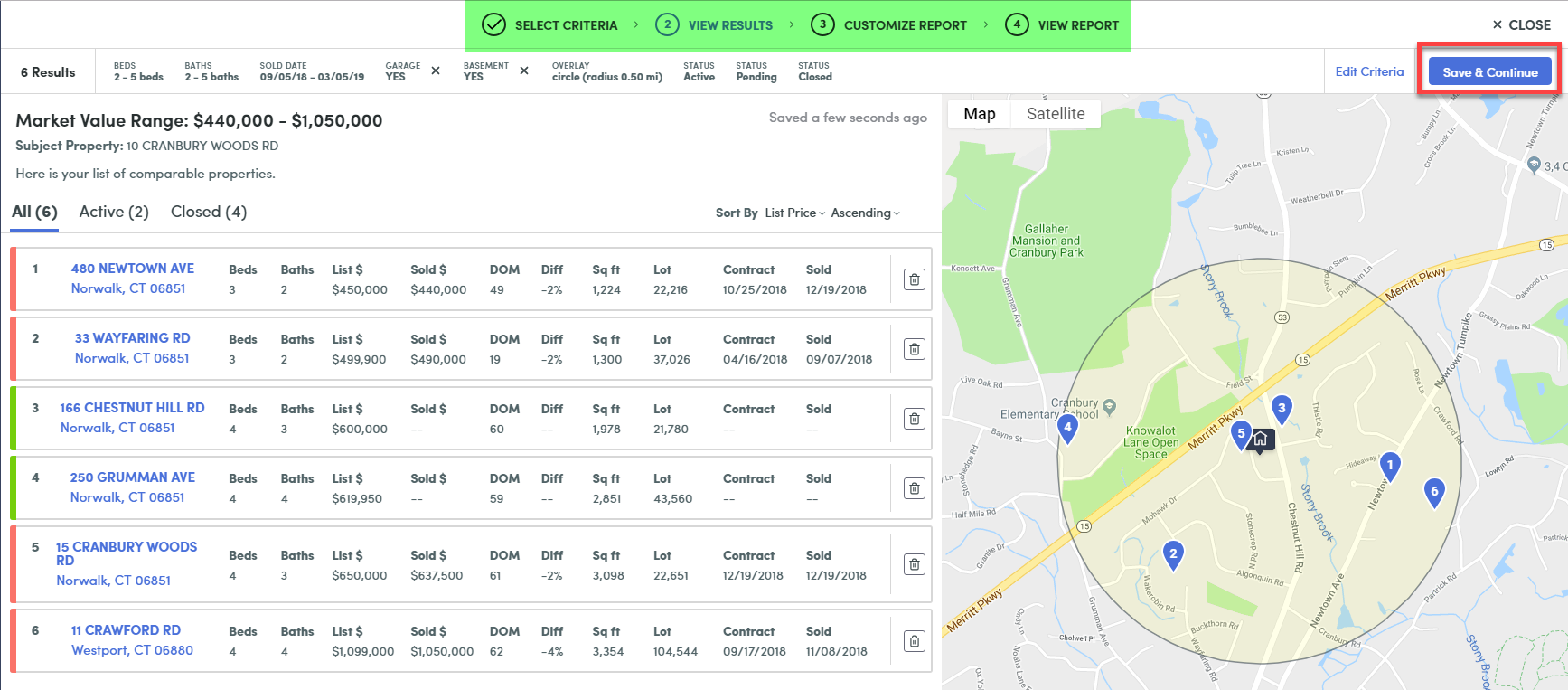
Select the comps you want to use and click Save & Continue (in the upper right).
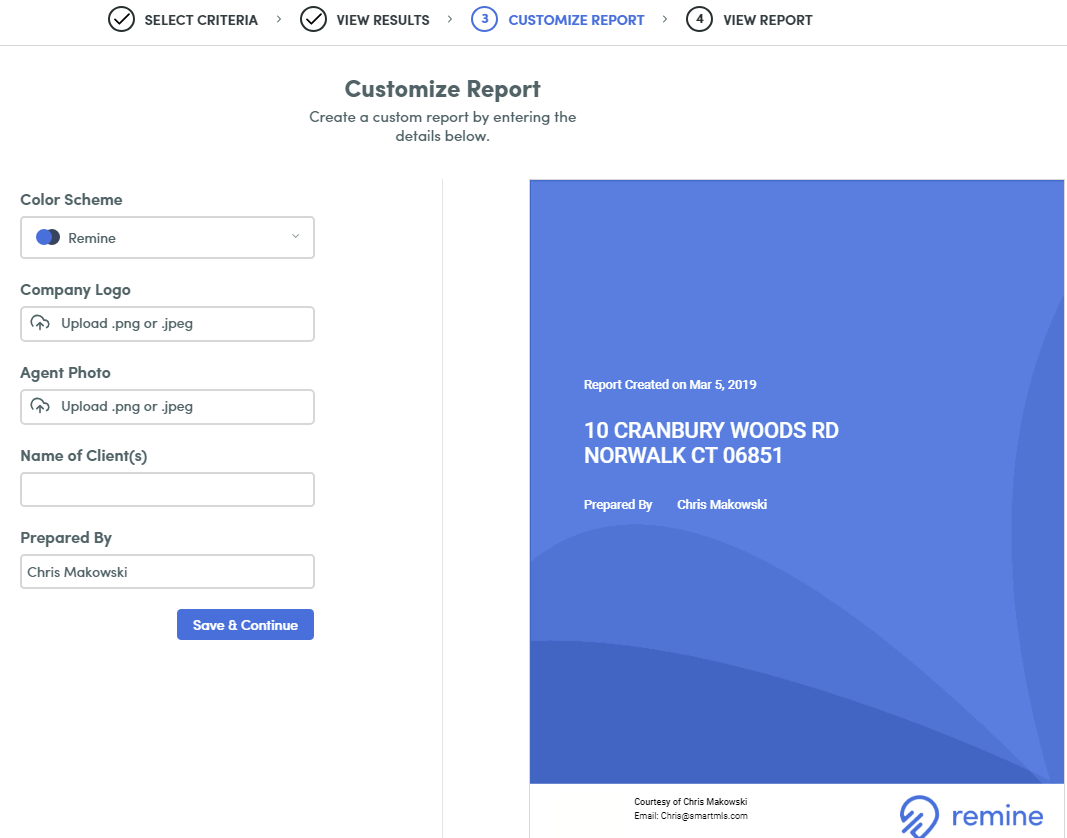
The third step allows you to customize the CMA report. You can add your company logo, personal photo and client's name:
The CMA report that is generated is pretty basic, but does give some nice information, such as the price ranges and averages for the Active and Closed comps:

Additional statistics from the comparable properties:

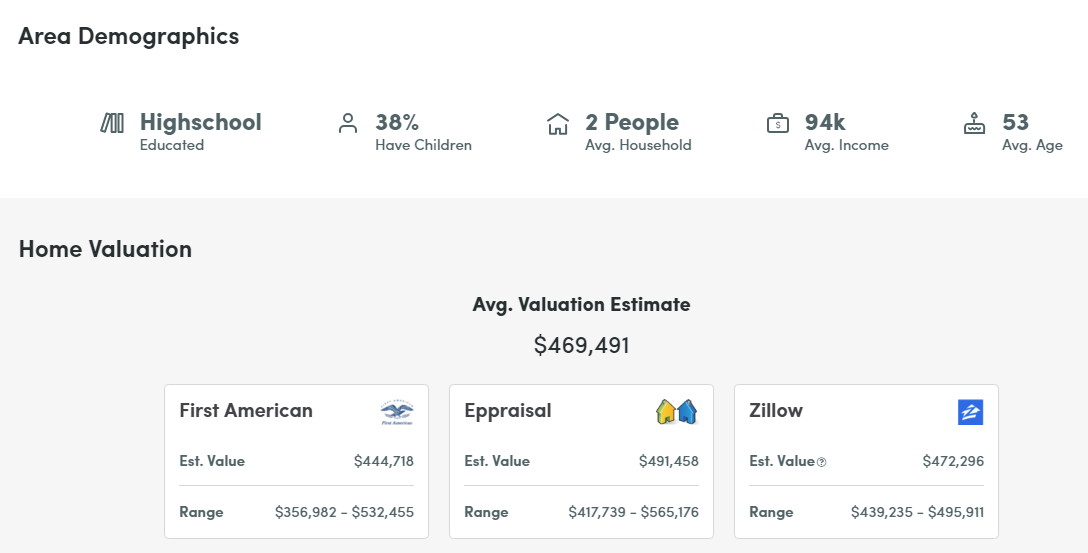
Area Demographics and three different Home Valuation models:
Here is a video Remine has created that goes through the entire process.
Comments
Please sign in to leave a comment.